Website User Management
Inviting Website Users
Website Users can be invited through the CloudPass Admin Centre to give users the access they need to certain areas. This guide explains how to invite a new Website User and how to assign them the permissions you want to allow.
Step 1: Open Website Users
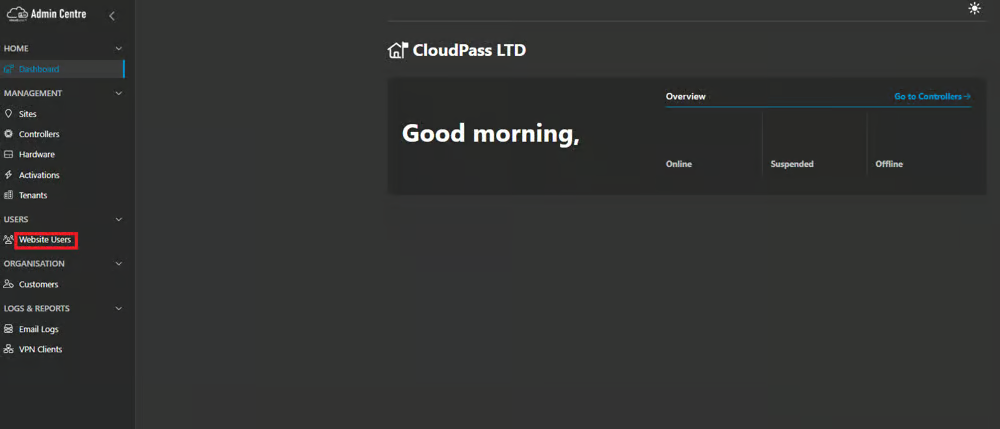
Log into the CloudPass Admin Centre. you will then be taken to the home dashboard.
From the navigation menu on the left-hand side select Website Users.
Step 2: Inviting a User
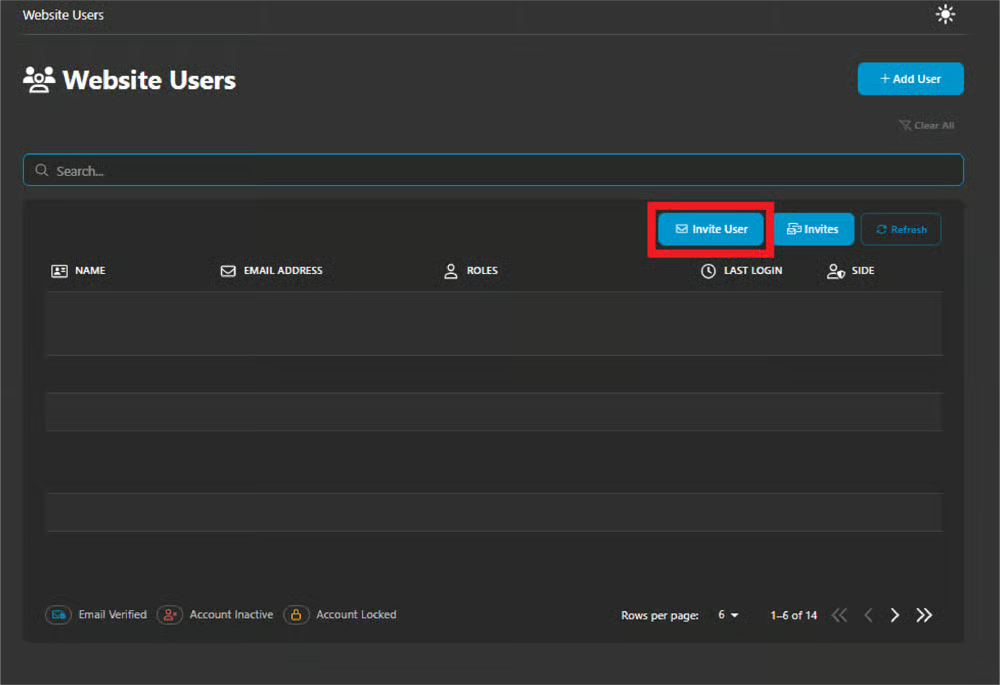
Once the Website User page has opened, select Invite User to begin adding a new Website User.
Step 3: Enter the User details
First, begin by entering the email address of the person you would like to invite.
Next, select the role you would like to assign the user. Use the role descriptions below to ensure the correct access level is selected.
Once the email address has been added and the correct role has been selected for the permissions you want to allow select Send Invite.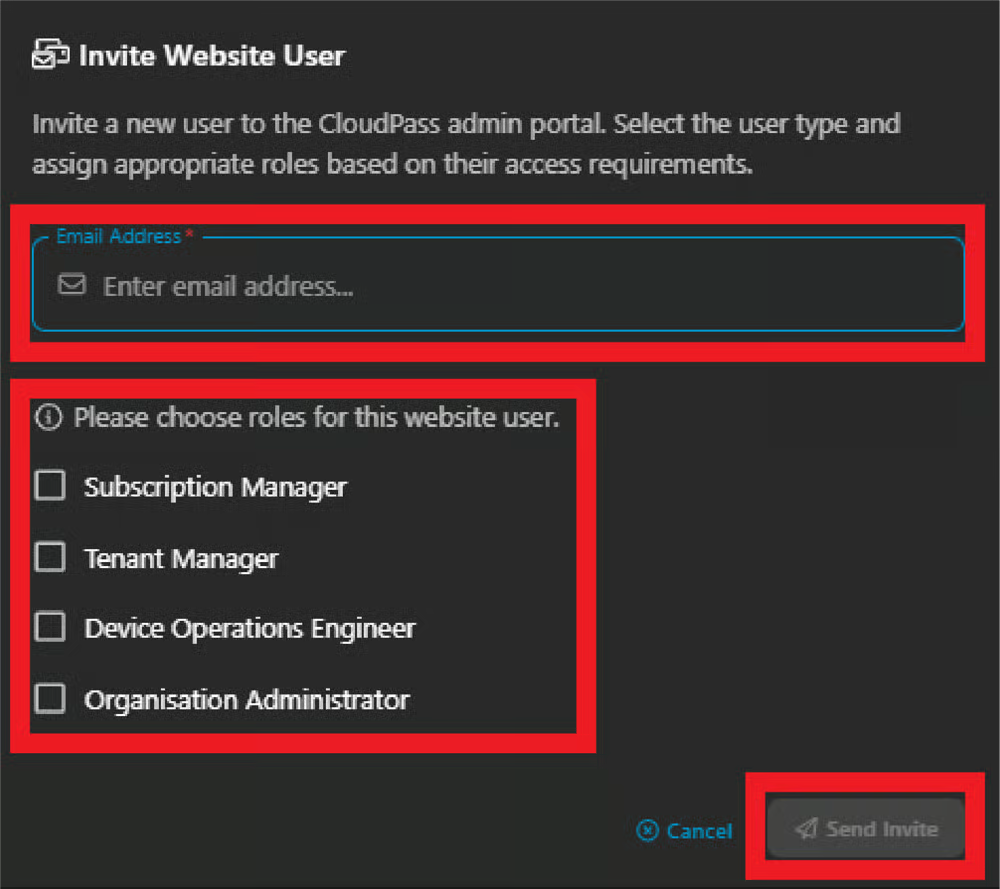
Website User Roles
Subscription Manager
This role can: Assign, manage and suspend subscriptions.
Tenant Manager
This role can: Create tenants, create sites - purge data within 31 days of a site being created, create controllers and assign hardware.
Device Operations Engineer
This role can: Reboot controllers, manage email alerts and configure etc.
Organisation Administrator
This role can: Update the support number, billing number, support email, manage website users and update company details.
Was this article helpful?
That’s Great!
Thank you for your feedback
Sorry! We couldn't be helpful
Thank you for your feedback
Feedback sent
We appreciate your effort and will try to fix the article